

GenAI has been the buzzword during this last year or so. Everyone is using GenAI tools, LLMs, agents, chat based code generators and whatnot. Among all the tools that appeared during this period MCP seems to be the one that is growing wildly and everyone is trying to adopt it.
INFO
MCP (or the Model Context Protocol) is an open-source standard for connecting AI applications to external systems. Claude, ChatGPT and many other tools can use this protocol to connect to data sources. These can be local files, databases, search engines, calculators, task management tools, etc.
“Just as USB-C provides a standardized way to connect electronic devices, MCP provides a standardized way to connect AI applications to external systems.”
Another new technology that appeared in the last year is Amazon Aurora DSQL, a PostgreSQL based distributed database from AWS. I have been using it in the last couple of months and many times I wished I could connect it to Claude Code, as this is the tool I use often to help me write code, do research or just experiment.
Connecting Claude Code to DSQL through the MCP is definitely possible, AWS actually released an MCP server for DSQL. I will explain in this article how to set it up so you can use it in your own project because sometimes with all these new tools the documentation is not always very straightforward on how to do certain things.
Capabilities
Before we go into how you can install it, let’s see what it can help you with. The DSQL MCP server has a few useful tools that will allow your AI tool to:
- execute read only queries (readonly_query)
- execute write operations in a transaction (transact). This will require the
--allow writesparameter. - get table schema information (get_schema)
- search Aurora DSQL documentation (dsql_search_documentation)
- read specific DSQL documentation pages (dsql_read_documentation)
- get recommendations for DSQL best practices (dsql_recommend)
Note that this MCP server can only be run locally on the same host as the LLM client that is using it.
Let’s see it in action
I have installed it (see below installation instructions) and ran a few prompts to see what the MCP server can actually do for me. In a usual workflow with a coding agent you wouldn’t do these types of queries manually. The agent would be able to work with the DSQL cluster on it’s own, crafting it’s own prompts. The examples below are just to illustrate the capabilites of the DSQL MCP Server.
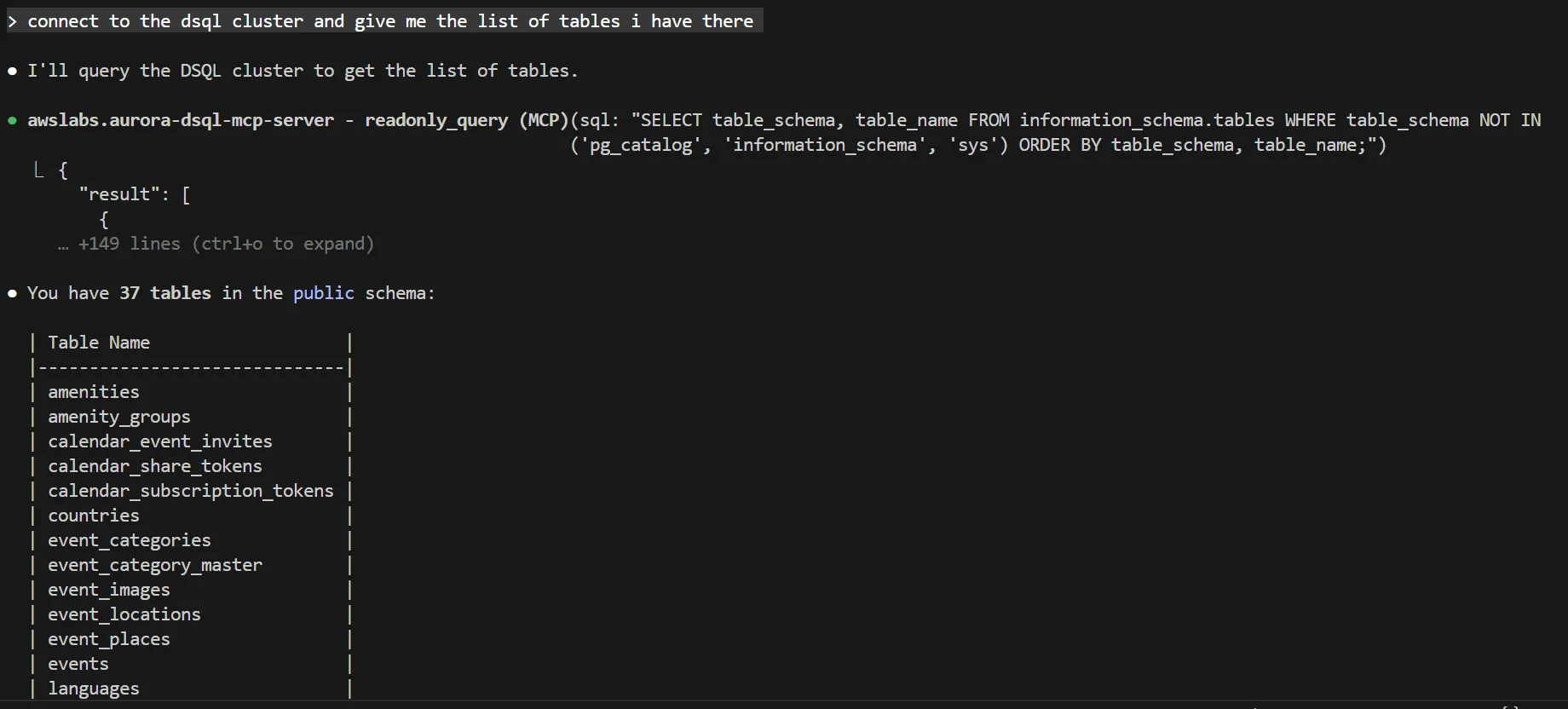
Getting the list of tables
Prompt: connect to the dsql cluster and give me the list of tables i have there
Retrieving the table schema for a particular table
Prompt: show me the schema for the amenities table
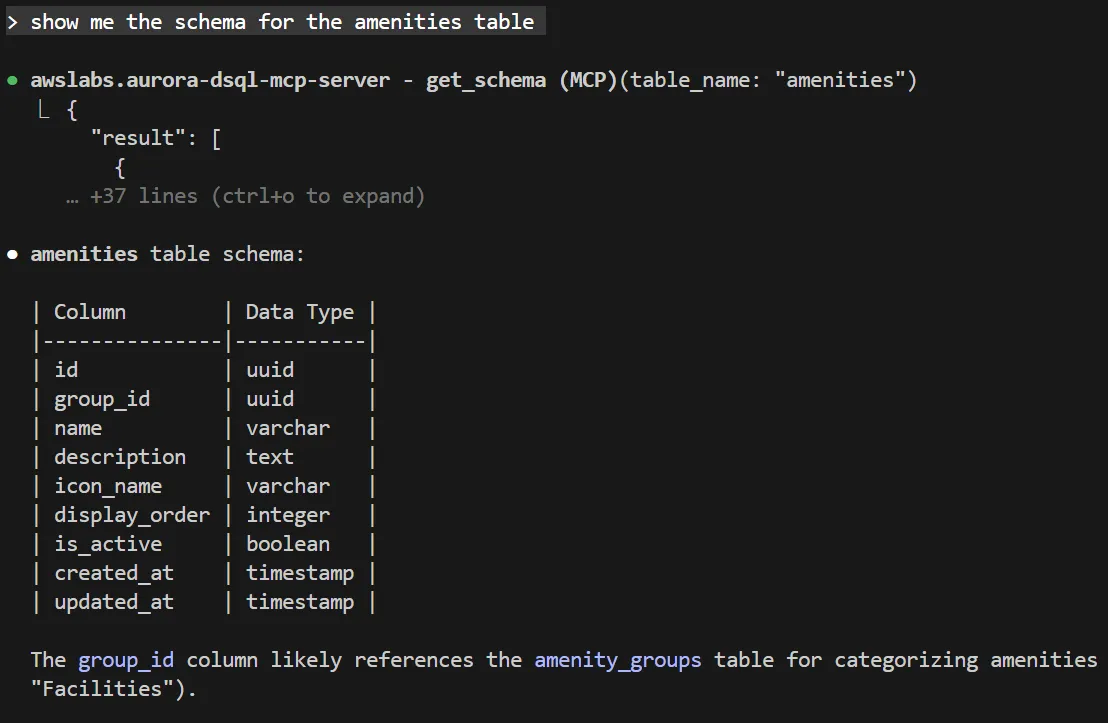
Interestingly although we have no defined foreign key constraints - Claude Code tries to guess these and it is doing it right. In this case the group_id indeed is a reference tot the amenity_groups table (not strictly enforced by the database)
Retrieving some records
Prompt: give me the first 5 records from the locations table
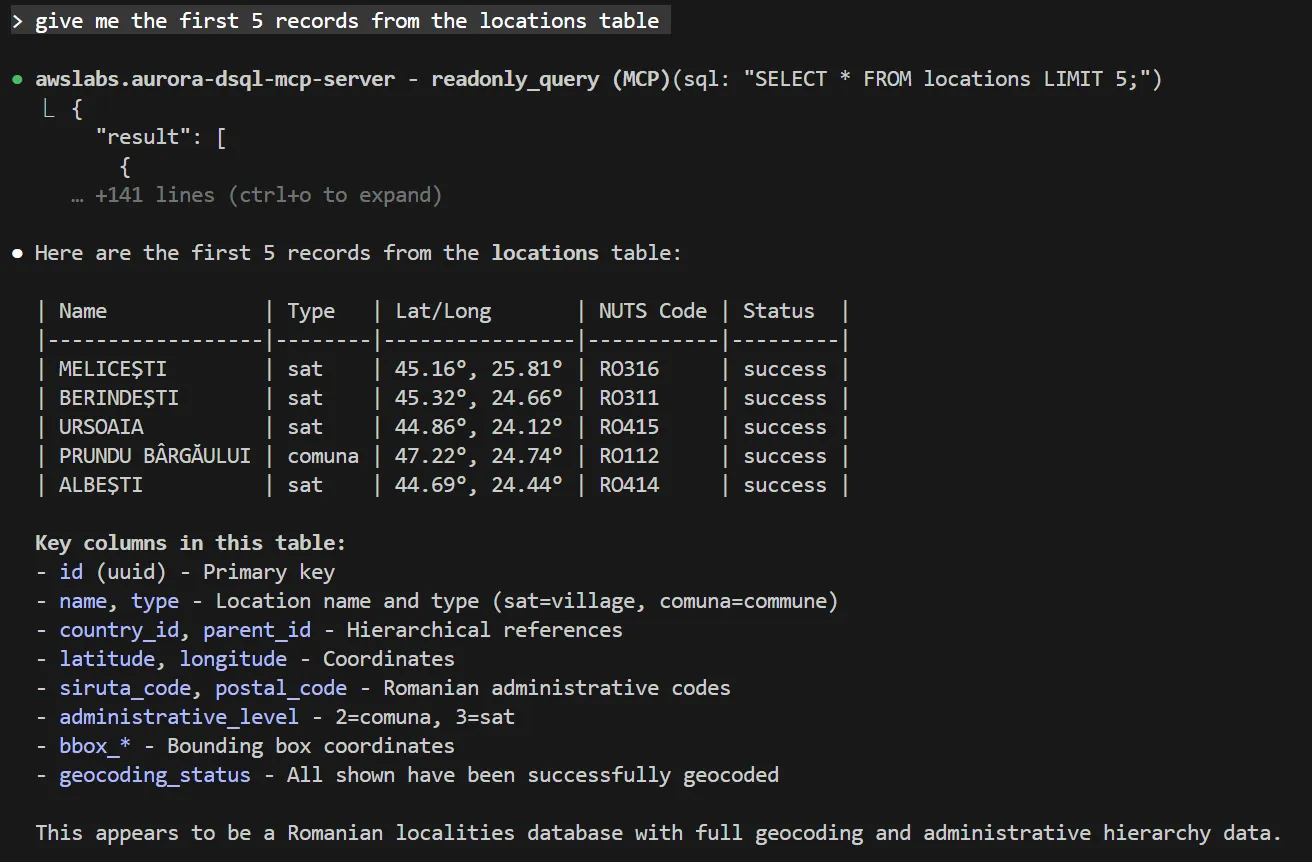
The LLM in this case tries to figure out also what is in the specific tables and what kind of data we are looking at.
Adding a new record into the database
Prompt: add a new record in the amenities table called "WiFi"
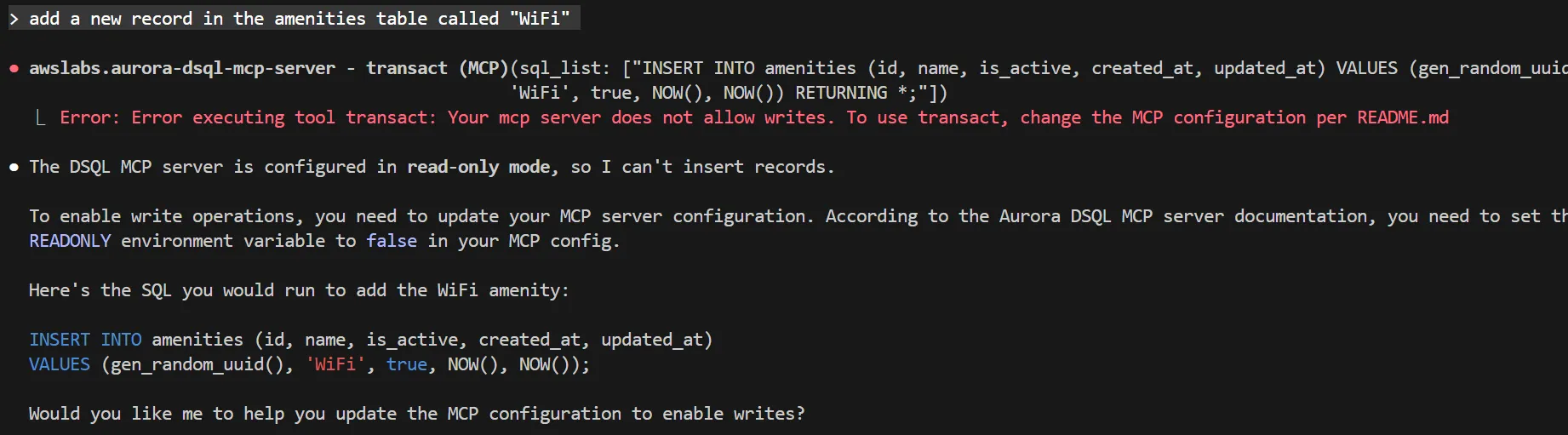
What is not visible here is that it asked me if I want to allow it to write to the database. After I allowed it, it would still fail as i have not allowed writes when I’ve done the setup of this MCP server. I need to use the --allow-writes option in the MCP server config.
As he offered to update the MCP configuration I’ve let it do it. However that didn’t went well as it hallucinated and tried adding "read-only" : "false" which is incorrect. One needs to use --allow-writes (see below in the installation section: docker)
After I changed the configuration it worked:
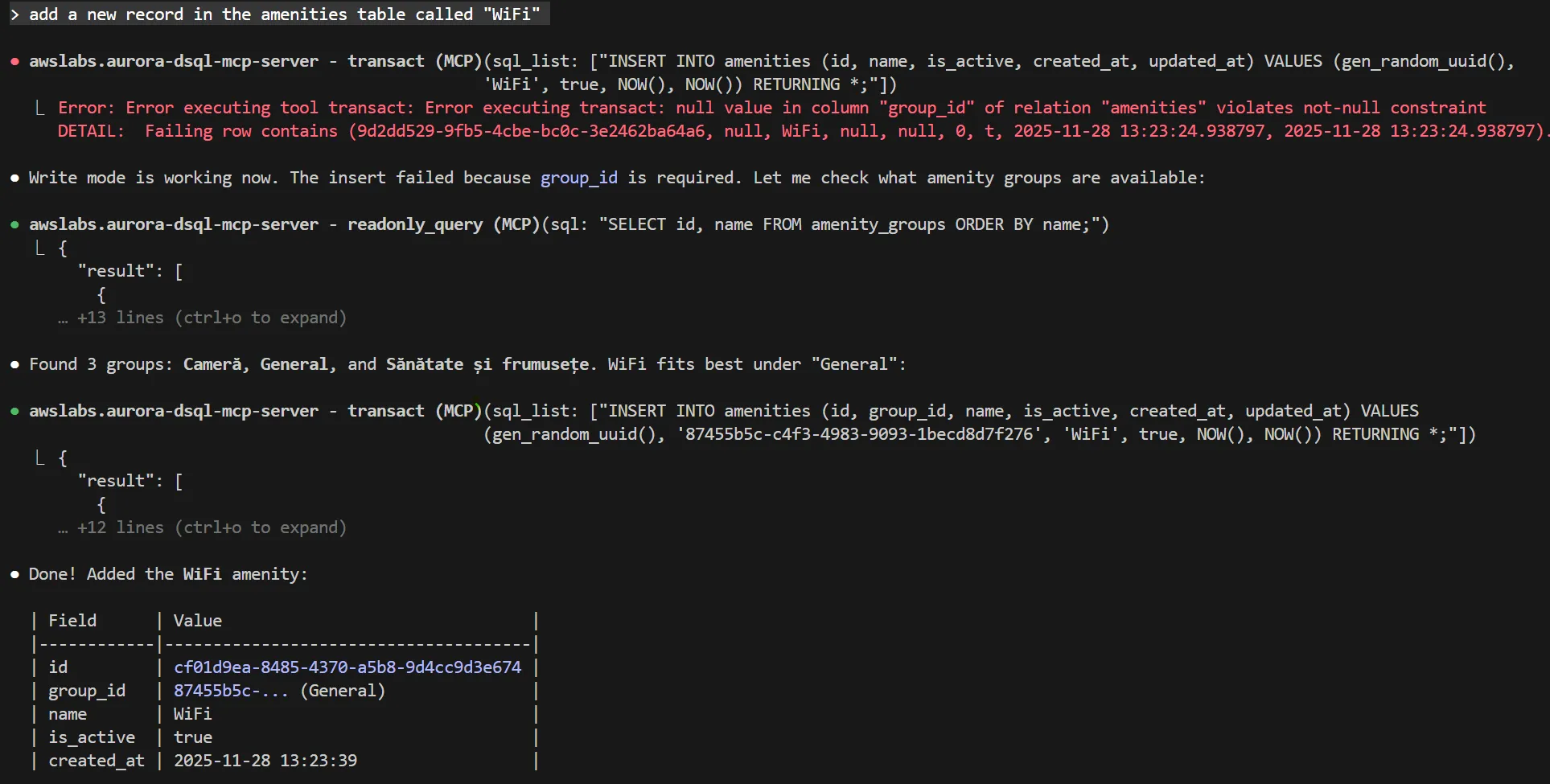
The interesting aspect is that it couldn’t add the amenity directly as the group_id cannot be null (got an error). So it retrieved the list of amenities from the amenity_groups and it figured it out which one would be the right group for this one without my input. And it has correctly done that in this case. It’s the General group (the other ones are Room and Health and beauty). Then proceeded to add the record.
Documentation queries to the MCP server
The MCP server can also be used to retrieve best practices and read documentation pages from the AWS documentation pages. The agent will do that and can get up to speed what is the best practice regarding something. For example here I have asked it about indexes in DSQL:
Prompt:
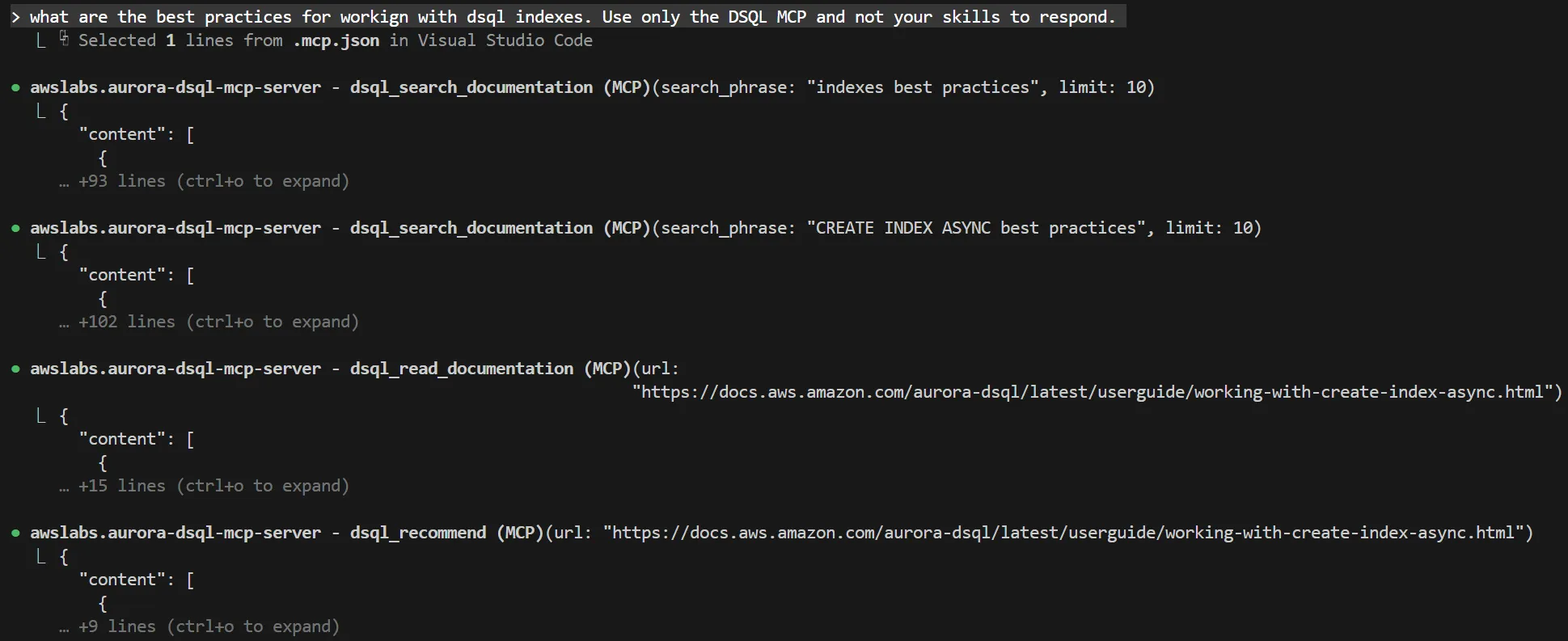
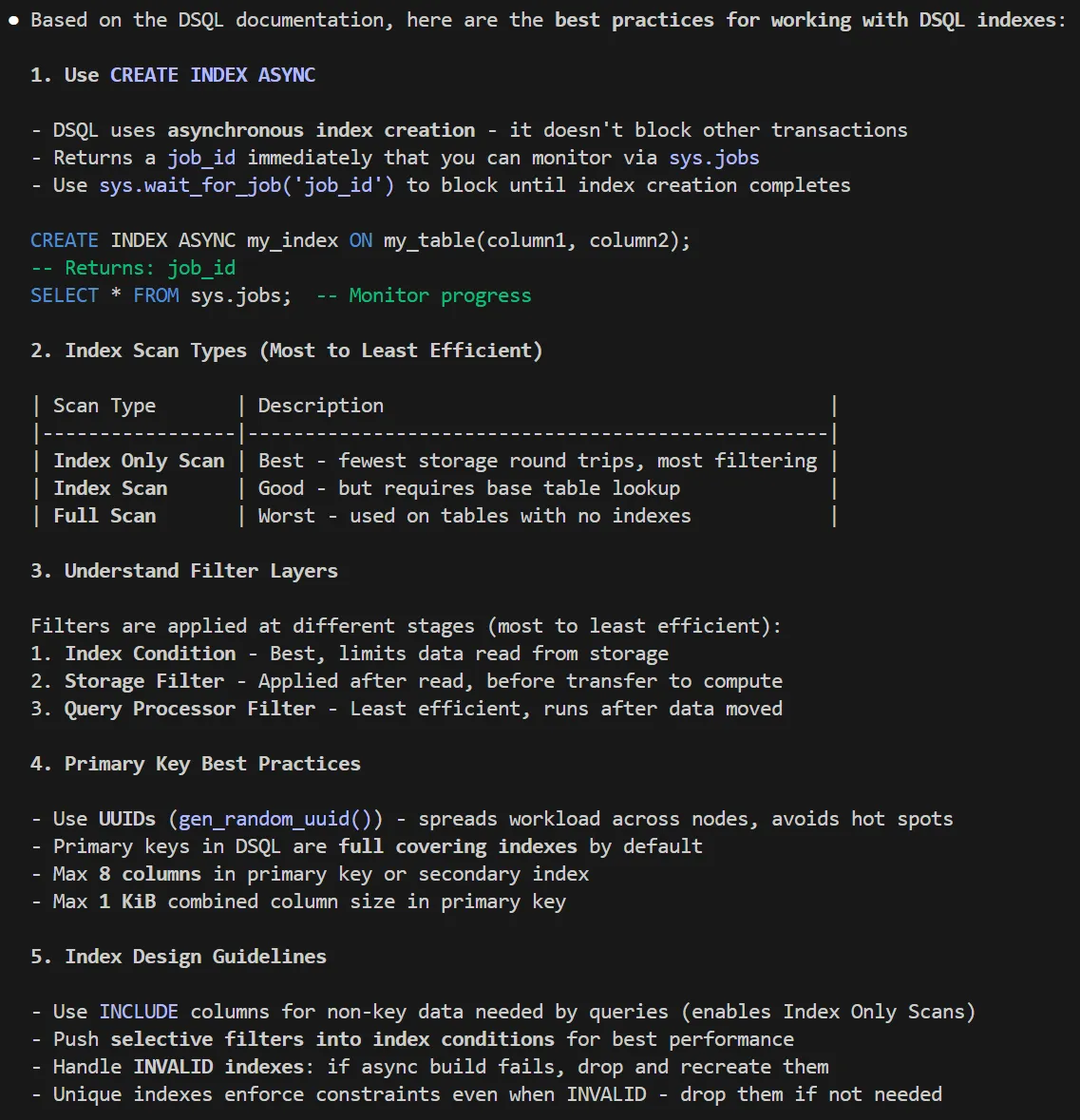
As you can see index creation is a bit different in DSQL then in standard Postgres. If the agent doesn’t know this - and by default it will not know (trust me i tried) – then it will fail.
This is because it will try using CREATE INDEX queries that will fail with ERROR: unsupported mode. please use CREATE INDEX ASYNC, instead of the CREATE INDEX ASYNC that is required in DSQL.
This is how you can use the MCP server to steer Claude Code to work using best practices for DSQL. There is also another way, through “Skills”, but I will write about that in a dedicated article.
Installing the Aurora DSQL MCP server in Claude Code
Before you proceed to install the MCP server make sure you have the following information:
- your DSQL endpoint URL, something like:
somerandomestringhere.dsql.your-region.on.aws - your AWS region, this should be the region where the DSQL cluster with the above URL is deployed to
- your AWS credentials that have the right permissions to access DSQL. These ideally should be configured in your AWS CLI under a profile
- your database user, usually this is admin
Then you can proceed to install the MCP server in Claude Code, this can be done in two ways:
Using UV
This is pretty straightforward and probably the easiest way to do it.
Make sure you have uv and python installed.
In your Claude Code project directory create a file called .mcp.json
{
  "mcpServers": {
    "awslabs.aurora-dsql-mcp-server": {
      "command": "uvx",
      "args": [
        "awslabs.aurora-dsql-mcp-server@latest",
        "--cluster_endpoint",
        "REPLACE_WITH_YOUR_CLUSTER_ENDPOINT",
        "--region",
        "REPLACE_WITH_YOUR_AWS_REGION",
        "--database_user",
        "REPLACE_WITH_YOUR_DATABASE_USER",
        "--profile",
        "REPLACE_WITH_YOUR_AWS_PROFILE_NAME"
      ],
      "env": {
        "FASTMCP_LOG_LEVEL": "ERROR"
      },
      "disabled": false,
      "autoApprove": []
    }
  }
}
Once that is done you should be able to use the MCP server
Using Docker
This is an alternative method and it is useful if you want your MCP server to be running in a container, isolated from your local environment.
First you need to clone the AWS MCP servers repository:
git clone https://github.com/awslabs/mcp.gitThen go to the ‘mcp/src/aurora-dsql-mcp-server’ subdirectory and build the docker container
docker build -t awslabs/aurora-dsql-mcp-server:latest .Then you have to create an .env file with your AWS credentials (make sure never to commit this to git - add it to .gitignore).
You can do this either manually:
AWS_ACCESS_KEY_ID=your_access_key_id
AWS_SECRET_ACCESS_KEY=your_secret_access_key
AWS_SESSION_TOKEN=session_token
or you can conveniently export this with aws configure
aws configure export-credentials --profile your-local-aws-profile-name --format env > temp_aws_credentials.env

sed 's/^export //' temporary_credentials.env > .env

rm temporary_credentials.env
When this is done you’re ready to create your .mcp.json file, this time configured for docker:
{
  "mcpServers": {
    "awslabs.aurora-dsql-mcp-server": {
      "command": "docker",
      "args": [
        "run",
        "-i",
        "--rm",
        "--env-file",
        "/path/to/your-project/.env",
        "awslabs/aurora-dsql-mcp-server:latest",
        "--cluster_endpoint",
        "REPLACE_WITH_YOUR_CLUSTER_ENDPOINT",
        "--database_user",
        "REPLACE_WITH_YOUR_DATABASE_USER",
        "--region",
        "REPLACE_WITH_YOUR_AWS_REGION"
      ]
    }
  }
}
Now your DSQL MCP server should work. However please note that by default it will be in read-only mode. Meaning you cannot write anything to the DSQL cluster.
If you want to enable that then you will have to use the --allow-writes option.
```json
{
  "mcpServers": {
    "awslabs.aurora-dsql-mcp-server": {
      "command": "docker",
      "args": [
        "run",
        "-i",
        "--rm",
        "--env-file",
        "/path/to/your-project/.env",
        "awslabs/aurora-dsql-mcp-server:latest",
        "--cluster_endpoint",
        "REPLACE_WITH_YOUR_CLUSTER_ENDPOINT",
        "--database_user",
        "REPLACE_WITH_YOUR_DATABASE_USER",
        "--region",
        "REPLACE_WITH_YOUR_AWS_REGION",
        "--allow-writes"
      ]
    }
  }
}
```
That’s it. As you can see the MCP server is not difficult to set up and it gives your genAI agent another tool in it’s arsenal. So when you’re building something on DSQL and use agents, they are able to interact with the cluster easily.